
User Guide Quick Links
1. Getting Started Guide
Text Version
Installing The Plugin
1. From your WP Admin Dashboard, visit Plugins menu -> Add New Plugin submenu
2. Click the 'Upload Plugin' button
3. Browse the AI FrontPost ZIP file from your storage, and click the Install Now button
4. After the plugin is installed, remember to activate it right away
5. Once you do that, navigate to Posts menu -> AI FrontPost submenu
6. Enter your License Key, and click the 'Verify License' button
NOTE: Your license key normally is your Purchase/Paypal email address. But if it says License invalid, please try to input your WarriorPlus registered email address as the License Key.
Setting Up The Plugin
Inside AI FrontPost setting page, you only need to set up TWO things: Security Phrase and Author Selection
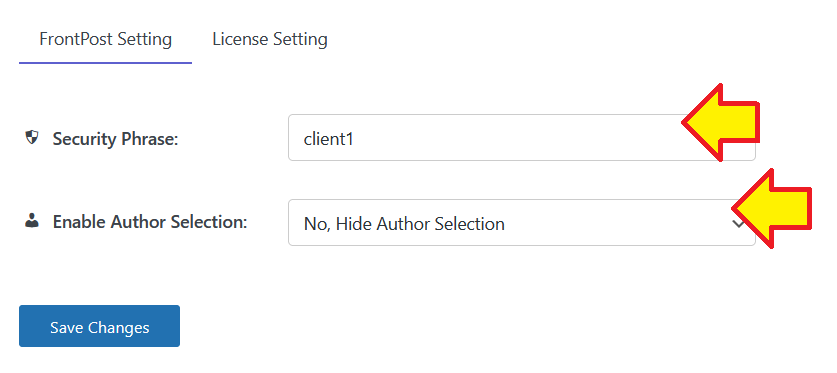
1. Security Phrase: You can input anything you want, my suggestion is to make it simple and short.
This security phrase will be asked every time you use AI FrontPost content generator on the front end. It must be setup so nobody can post anything to your website using AI FrontPost if they don't know the security phrase.
2. Author Selection: If your website has several Authors, and you want them to be able to use AI FrontPost too, then enable this feature. If not then just disable it.
After everything is setup, remember to click the 'Save Changes' button.
Creating Your 'AI FrontPost' Page
1. Navigate to Pages menu -> Add New Page
2. Add a Title for that page, anything you like
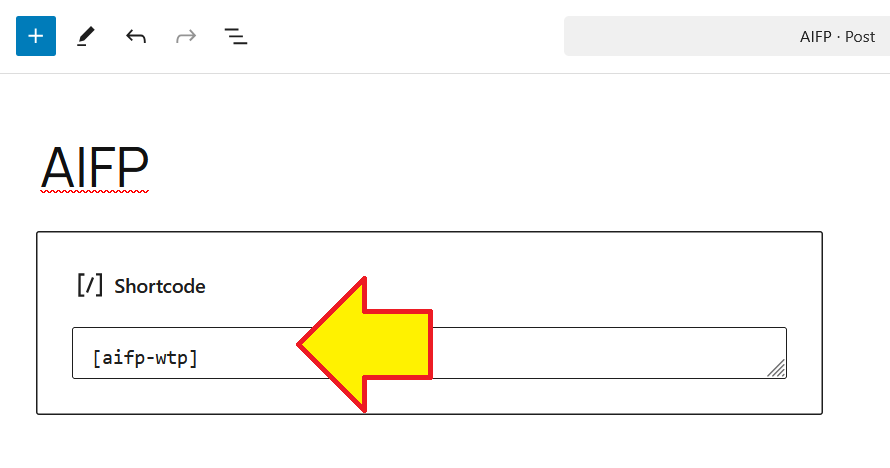
3. Copy this text: [aifp-wtp]
4. Paste it into the editor, and WordPress will automatically convert the text into a Shortcode block like this:
5. After that, Publish the page by clicking the 'Publish' button
Alrighty, once you do that, then you can visit the page and start using AI FrontPost at anytime you want.
Later on you do not need to be logged in to your WP site whenever you want to use AI FrontPost on that page.
Now go to the next step below (Generating Content) to find out how to use AI FrontPost on that page.
2. Generating Content
Text Version
Generate Content Using AI FrontPost Form
1. Visit your AI FrontPost page that you have created on the previous section
2. You will see a Form like this:
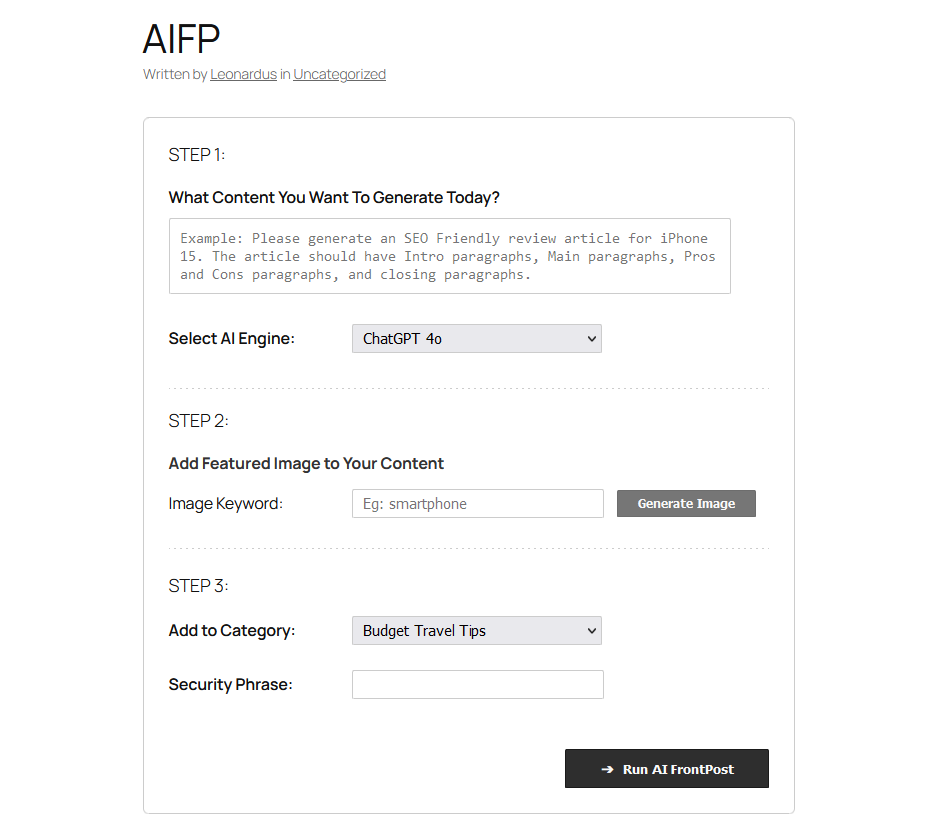
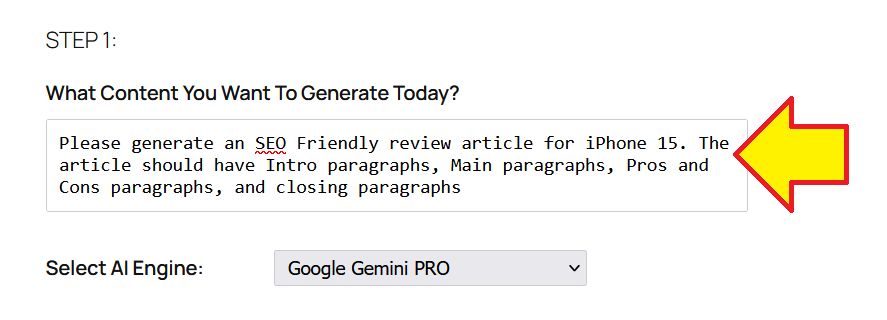
3. On the textarea field, you can enter a prompt for the AI engine to create your content:
NOTE: Wondering what prompts you should input? Then download 250+ AI FrontPost DFY Prompts here.
4. After that you can also set WP Featured Image for the post
5. Once everything is good, click the 'Run AI FrontPost' button
After the button is clicked, wait a few seconds for the AI engine to write the content for you. And when the content is finally generated, you can edit the Title and paragraphs if needed:
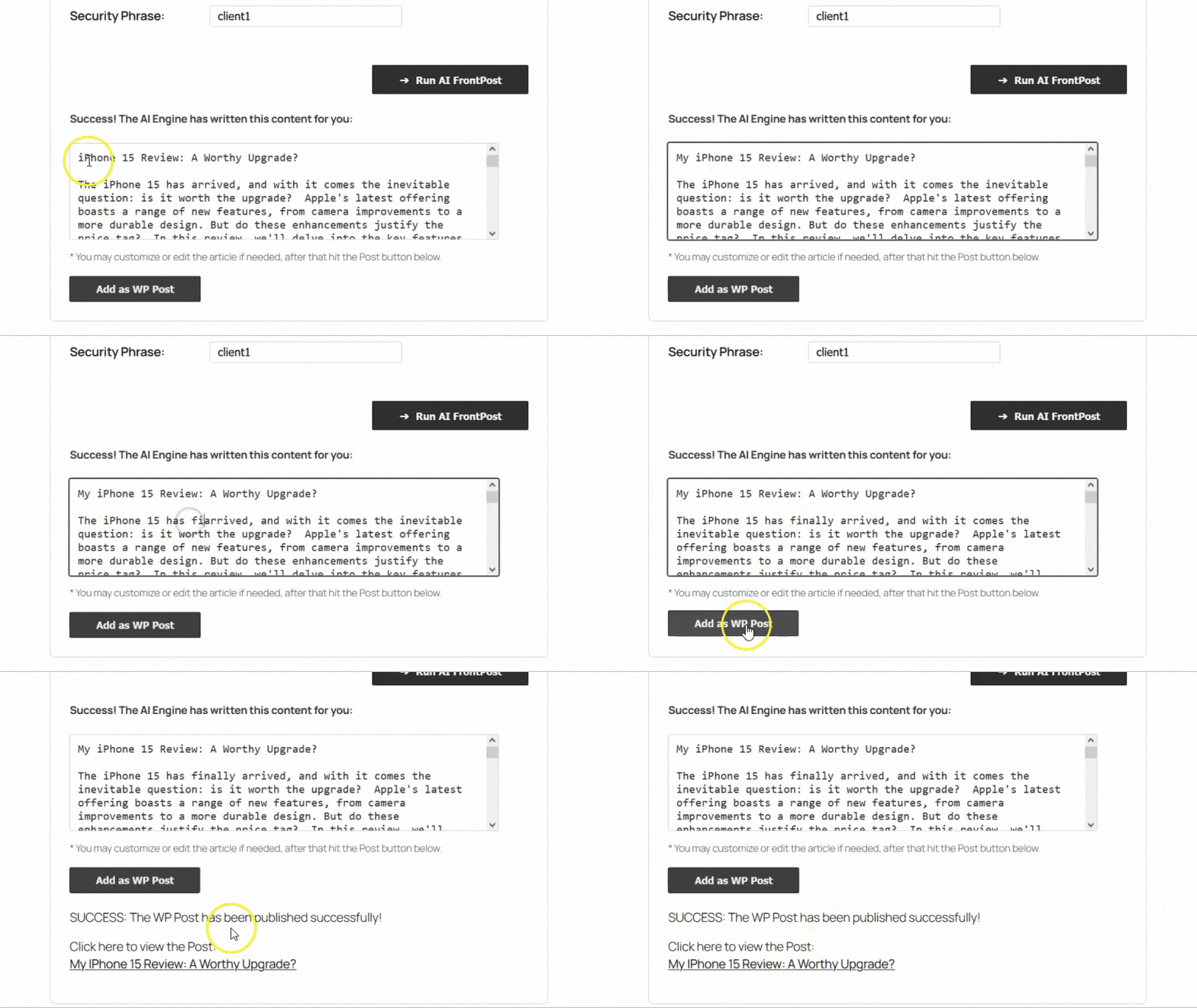
When you are satisfied with the content, click the 'Add As WP Post' button to publish the content.
Once you do that, the plugin will provide you with the link of published post so you can view it easily.
3. Updating Your License Key
What Is My License Key?
Your license key normally is your Purchase/Paypal email address. But if it says License invalid, please try to input your WarriorPlus registered email address as the License Key.
Why and When Should I Update My License Key?
In most cases, you only need to update your License Key if you have purchased the Commercial Unlimited license. If you didn't buy that license, then you do not to update your License Key unless our support team ask you to do that.
If you did purchase the Commercial Unlimited license, then you need to update your License Key so the plugin will be updated with that license inside your website.
To update your License Key:
1. Navigate to Posts menu -> AI FrontPost submenu
2. Click the 'License Setting' tab, input your License Key and click the 'Save Changes' button
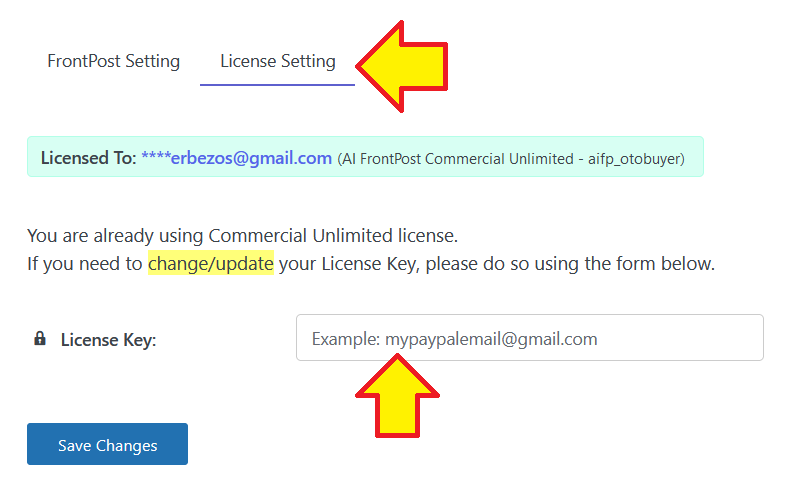
And done. The plugin should now be updated to Commercial Unlimited license and you can use the plugin on as many websites as you like.
To make sure your License Key is correct, please enter the Purchase/Paypal Email that you used upon buying the Commercial Unlimited license (the first OTO).
4. Troubleshooting and Support
Can I Edit The Content After the AI Generated It?
Yep, you can. Once the content is generated, you can change/edit the title and the paragraphs inside the textarea. Please watch the demo video above on 'Generating Content' section.
After I Click the Run Button, I See The Result Box But No Content Is Generated?
The most common cause: the selected AI engine is down.
If you chose ChatGPT as the AI engine, please try again but this time select Google Gemini.
And vice versa: if you chose Gemini in the first place, kindly try again by choosing ChatGPT as the AI engine.
I Missed Out The 250+ DFY Prompt, Can I Get It Now?
Yes, of course! You can grab it through this WarriorPlus link.
I Bought Commercial Unlimited, But Why In My Website There Is A Notice To Upgrade??
Please update your License Key as explained in here.
Still Run Into Some Troubles? Please Reach Out To Us :
5. Our Other Products

© WPTHEMEPLUGIN.COM